
64GB Bootable USB Drive 3.2
4.3Editor score
Windows 11/10 Support
No TPM Required
Network Drives Included
Discover the top 10 bootable flash drives for Windows and Linux in 2026. Compare features, speeds, and compatibility to find the perfect repair tool.
Choosing the right bootable flash drive is essential for system repair, OS installation, and data recovery. A quality drive ensures reliable access to critical tools when your computer fails to start normally or requires a fresh setup.
We evaluated ten real products based on compatibility, speed, and included software tools. Each option supports UEFI or Legacy modes and offers varying levels of OS support including Windows and multiple Linux distributions for diverse user needs.
This guide highlights the best picks for budget, performance, and versatility. Detailed reviews cover standout features and limitations to help you select the right drive. Prices and availability change frequently so verify current offers before purchasing.
4.3Editor score

4.1Editor score

4.7Editor score
The following table compares the key specifications and features of all ten selected drives. Review each option to understand its capacity, supported operating systems, and unique capabilities for system maintenance and repair tasks.
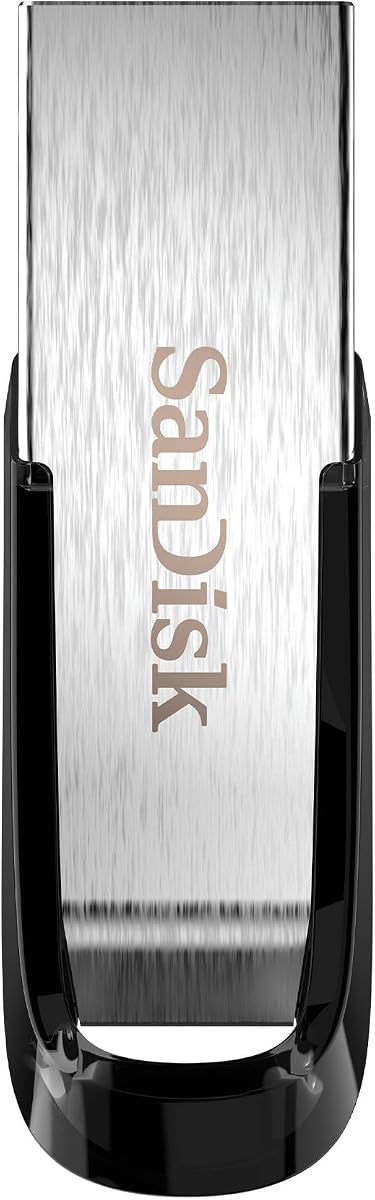



This drive offers a complete solution for installing or recovering Windows systems without TPM constraints. It is rated highly for its broad compatibility with Windows 10 and 11 installations on modern and older hardware.
We may earn a commission when you buy through this link, at no additional cost to you.
It comes preloaded with network drivers for both WiFi and LAN which helps connect after installation. The inclusion of data recovery and partitioning tools makes it a comprehensive maintenance utility for technicians.
Users must disable Secure Boot in BIOS which may be a hurdle for some. Additionally the drive requires a full reinstall meaning existing systems cannot be kept during repair processes.
This product is ideal for users needing a reliable way to reinstall Windows on budget hardware. It balances ease of use with powerful recovery features for a very accessible price point.
The included WiFi and LAN drivers ensure internet connectivity immediately after OS installation which simplifies updates and activation steps significantly.
Beyond installation the drive provides hard drive partitioning and data recovery options which extend its utility beyond simple system setup tasks.
We may earn a commission when you buy through this link, at no additional cost to you.
A robust drive designed for general storage and fast data transfer. It features a durable metal casing and high read speeds which make it suitable for bootable tasks and file backups.
We may earn a commission when you buy through this link, at no additional cost to you.
The drive can transfer large files like full length movies quickly thanks to its USB 3.0 performance. This speed reduces wait times during system imaging or large file transfers.
Password protection is available but may require additional software installation on Mac systems. The metal design is stylish but may feel warm during extended high speed operations.
This drive is excellent for users wanting a single reliable unit for both bootable and storage needs. Its speed and durability make it a strong choice for frequent transfers.
Read speeds up to 150MB/s allow quick access to boot files and reduce boot times significantly on compatible USB 3.0 ports.
Built-in password protection uses AES encryption to keep private files secure from unauthorized access when the drive is lost or stolen.
We may earn a commission when you buy through this link, at no additional cost to you.
This drive stands out for its extensive support for Linux distributions alongside Windows 11. Users can run multiple operating systems directly from the drive without installing anything to the hard disk.
We may earn a commission when you buy through this link, at no additional cost to you.
It includes popular distros like Ubuntu and Kali along with niche options like Tails and Garuda. This variety makes it a powerful toolkit for developers and privacy focused users.
Like other tools Secure Boot must be disabled to access the menu on most machines. The drive is optimized for running live which means persistent storage setup might be needed for saved changes.
It is the top choice for anyone needing to explore or maintain Linux systems without complex setup. The breadth of options saves time compared to creating separate media for each OS.
Users can test every operating system without modifying their existing setup which is perfect for evaluation and troubleshooting scenarios.
Support for both UEFI and Legacy modes ensures this drive works with most PC and laptop models from the last decade.
We may earn a commission when you buy through this link, at no additional cost to you.
A compact solution focused on Windows recovery and installation without TPM requirements. It includes essential network drivers and backup tools to help maintain data safety during repairs.
We may earn a commission when you buy through this link, at no additional cost to you.
The smaller capacity is sufficient for OS images and basic tools without taking up much space. This makes it easy to carry for quick repair jobs on site.
Secure Boot must be disabled for compatibility which is a common requirement for this type of tool. The drive is optimized for reinstalls rather than preserving existing OS data.
This drive is best for users needing a portable and straightforward Windows repair kit. It balances cost and functionality effectively for occasional maintenance tasks.
Built-in backup options allow users to save files to external media before reinstalling Windows which protects against accidental data loss.
The smaller capacity and lightweight design make it easy to store in a toolkit or laptop bag for on-the-go IT support.
We may earn a commission when you buy through this link, at no additional cost to you.
This drive offers a focused solution for Windows 11 installation without TPM constraints. It is designed strictly for OS setup and recovery without extra maintenance tools or features.
We may earn a commission when you buy through this link, at no additional cost to you.
The small capacity reduces cost and size which makes it ideal for specific use cases where only a Windows image is needed. It is straightforward for basic system re-installations.
It does not support hardware repairs or complex diagnostics beyond OS installation. Users seeking advanced tools will find this option too basic for their needs.
Ideal for users who need a simple reliable installer for modern Windows systems. It provides a clear path to setup without unnecessary complexity or bloat.
By limiting the scope to Windows installation the drive avoids potential conflicts with other software while keeping the boot process simple.
We may earn a commission when you buy through this link, at no additional cost to you.
This drive is tailored for users new to Linux offering a selection of beginner friendly distributions. It comes with clear guides and software to help users transition smoothly from Windows.
We may earn a commission when you buy through this link, at no additional cost to you.
Users can test multiple environments without touching their hard disks which is safe for evaluation. The included productivity suites ensure the systems are ready for use immediately.
Compatibility is broad for standard PC but excludes Mac and ARM devices. Secure Boot must be disabled to access the boot menu on most machines.
This option is perfect for learners wanting to explore Linux without technical hurdles. The guided approach and easy trial features make adoption significantly simpler.
Included office and messaging tools allow users to work immediately in Linux which helps them adapt quickly to the new environment.
Printed guides and support contacts help resolve setup issues quickly which reduces frustration for those new to system booting.
We may earn a commission when you buy through this link, at no additional cost to you.
A value pack of three drives that can be used for custom bootable setups. The high speed and reliable performance make them suitable for imaging and general storage tasks.
We may earn a commission when you buy through this link, at no additional cost to you.
Each drive includes a password protected safe which secures files effectively. The retractable design protects the connector and adds durability for daily use.
These are standard storage drives so bootability depends on the user creating the image. They lack preloaded tools but provide flexibility for custom configurations.
This pack is ideal for users needing multiple reliable drives for various projects. The value and quality make them a practical choice for backup and maintenance.
The multiple drives allow users to keep different ISO images separate or share media across multiple devices without conflicts.
We may earn a commission when you buy through this link, at no additional cost to you.
This drive provides essential tools for Windows recovery including password reset and data backup options. It supports a wide range of Windows versions and is compatible with older hardware.
We may earn a commission when you buy through this link, at no additional cost to you.
The inclusion of WiFi and LAN drivers ensures connectivity after installation. Video tutorials help users navigate the setup process without technical expertise.
Users must disable Secure Boot for the drive to function properly. The focus on recovery means it requires a reinstall of the system rather than a simple repair.
It is a strong choice for users needing comprehensive recovery tools at an affordable price. The added utilities save time during critical system repairs.
The included reset tool helps regain access to locked accounts without losing data which is a critical feature for emergency recovery.
Compatible with older PCs ensures this drive works with a wide range of machines making it a versatile maintenance tool.
We may earn a commission when you buy through this link, at no additional cost to you.
A versatile drive with both Type-A and Type-C connectors for broad compatibility with modern and legacy devices. It is ideal for storing large ISO files and backups.
We may earn a commission when you buy through this link, at no additional cost to you.
The large capacity and fast speeds make it efficient for transferring large bootable images. A durable metal enclosure protects the device during transport.
As a storage device it requires the user to write their own bootable image. This offers flexibility but requires more effort than pre-made recovery media.
This drive is perfect for users managing multiple OS images on the go. The dual ports ensure it works with both new laptops and older desktops.
The dual connectors allow direct transfer to smartphones and tablets without adapters which simplifies data sharing workflows significantly.
We may earn a commission when you buy through this link, at no additional cost to you.
A premium drive designed for durability and high performance. The metal casing and rugged construction make it suitable for harsh environments and frequent travel.
We may earn a commission when you buy through this link, at no additional cost to you.
Read speeds up to 400MB/s ensure fast data access which reduces wait times when loading bootable images. This efficiency is ideal for professional workflows.
It is a storage device requiring custom boot media creation. The price is higher but justified by the build quality and extensive warranty coverage.
This drive is best for users needing reliable high-speed storage for system images. Its durability makes it a long-term investment for IT professionals.
Waterproof and shock-proof protection ensures the drive survives drops and spills which keeps critical data safe in demanding conditions.
High read speeds allow quick file transfers which is beneficial for large system images and time sensitive tasks.
We may earn a commission when you buy through this link, at no additional cost to you.
Selecting the right bootable flash drive requires considering your specific needs. The following factors will help you identify the best option for your situation.
Capacity determines how many operating systems you can store on a single drive. Larger capacities allow for multiple ISO files and tools which saves space in your toolkit.
Choose at least 64GB for flexibility but smaller drives may suffice for single OS use.
Ensure the drive supports both UEFI and Legacy modes to work with older and newer computers. This broad compatibility prevents boot issues across different hardware generations.
Check BIOS settings requirements like Secure Boot disabling before purchasing to avoid confusion.
Pre-loaded tools such as network drivers or password reset utilities add significant value to recovery drives. These features reduce setup time and technical barriers for users.
Prioritize drives with tools relevant to your workflow to save time during repairs.
Faster USB standards like 3.0 or 3.2 improve boot times and file transfers significantly. High read speeds are critical when working with large operating system images.
Look for drives with speeds above 100MB/s for efficient performance in professional settings.
A robust metal casing protects the drive from drops and wear during travel. Durability ensures the drive remains functional when needed most in critical situations.
Prioritize rugged designs if you frequently transport the drive for on-site repairs.
Password protection or encryption ensures sensitive data remains safe if the drive is lost. These features are essential when handling confidential system images or files.
Verify software support for your operating system before relying on these features.
Clear instructions and tutorials help users navigate setup steps quickly without frustration. Video guides or printed manuals can be decisive factors for non technical users.
Choose drives with detailed support documentation to simplify the boot process.
Consider the cost relative to the features and capacity offered. Some drives offer bundles like multi-packs which provide better value for multiple needs.
Balance budget constraints with the essential features you need for your tasks.
To use the drive connect it to your computer and restart the machine. Enter the BIOS or boot menu by pressing the designated key during startup such as F12 or Del.
Navigate the boot menu to select the USB drive and press Enter to start the system. Follow any on-screen instructions provided by the operating system or tools included on the drive.
Always disconnect the drive safely after use to prevent data corruption. Store it in a protective case to shield it from physical damage and dust.
Most drives work directly when connected but you may need to adjust BIOS settings. Secure Boot often must be disabled to access the boot menu successfully.
No these drives focus on software and OS installation rather than physical hardware diagnosis. They cannot fix issues like dead motherboards or failing hard drives directly.
Reinstalling Windows typically erases existing data on the system drive. Always back up important files to external storage before proceeding with any installation process.
Many options support both Legacy and UEFI modes ensuring compatibility with older hardware. Check specific model specs to confirm support for your machine generation.
No none of these drives include a valid Windows product key. You will need your own license key to activate the operating system after installation.
Check that the drive is properly recognized in the BIOS boot menu. Sometimes changing the boot order or using the correct hotkey helps resolve visibility issues.
Some options specifically support multiple Linux distributions while others are Windows focused. Choose a drive with Linux support if you plan to install that OS.
Access your BIOS setup by pressing the boot key during startup. Verify that USB boot is enabled in the boot options menu.
This guide reviewed ten top drives for system recovery and installation needs. The top picks balance features like speed compatibility and included tools for various users.
Prioritize compatibility and included tools based on your specific tasks. A drive with network support or password tools can save significant time during repairs.
Verify current availability and pricing before purchasing since offers change frequently. Selecting the right drive ensures you are prepared for any system issue.